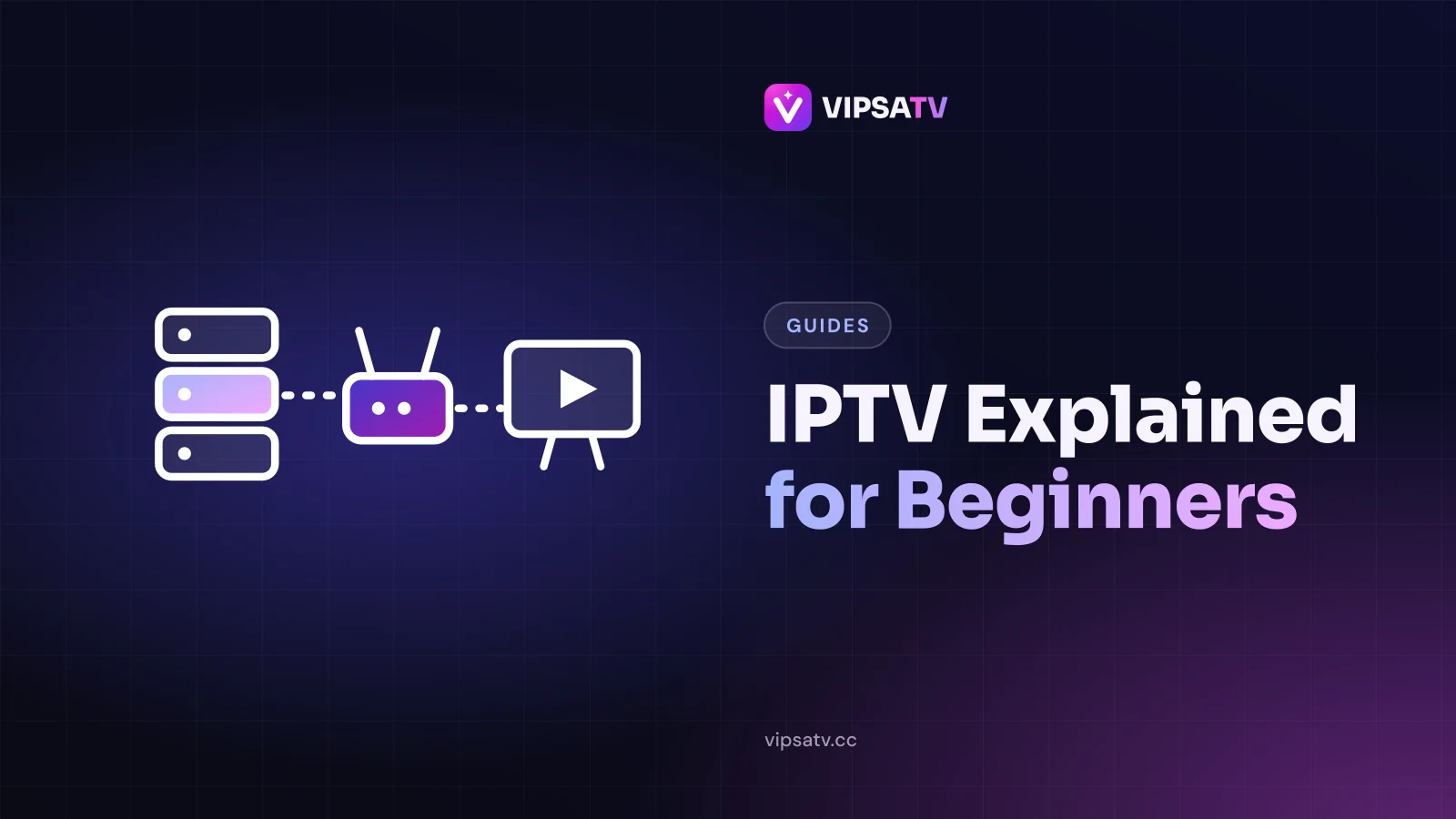
The easiest way to understand IPTV is to follow one live channel on its journey to your living room. It makes five stops, and once you know them, every setup guide and settings menu makes more sense. We use VIPSATV as the example, but the journey is the same for any IPTV service.
Stop 1: the broadcast
Every channel starts as a live broadcast from a TV studio, a stadium or a news room. At this point it is a very high-quality video signal, far too large to send to millions of homes as it is.
Stop 2: encoding
The signal is compressed by an encoder into a stream small enough to travel over the internet. This is also where different quality versions are made, such as HD, Full HD and 4K. Each version has a different bitrate, which is the amount of data per second it needs.
Why one channel comes in several qualities
Encoding the same channel at different qualities lets each home pick the version its connection can carry. That is why you may see a channel listed with 4K, FHD and HD labels. They show the same programme; the higher versions just need more data per second. If one pauses, the next one down usually plays smoothly.
Stop 3: the servers
The encoded streams sit on servers that hand a copy to each viewer who asks for it. Your login tells those servers who you are and how many screens you may use at once. The same servers also hold the on-demand library and the TV guide data.
What your login does on the server
When your app connects, the server checks your username and password, confirms your plan is active and counts how many of your screens are already playing. If you are within your limit, it starts sending the stream. That is why a login can be correct but still refuse to play when every screen on your plan is in use.
Stop 4: your internet connection
The stream travels across the internet to your router, then over Wi-Fi or a cable to your TV, stick or phone. This is the stop most likely to cause trouble, because your home connection is shared with everything else in the house. It is why our setup guides keep recommending 5 GHz Wi-Fi or a network cable.
Wi-Fi versus a cable
Wi-Fi is convenient, but it is shared with every phone, laptop and gadget in the house and weakened by walls and distance. A network cable from the router to the TV removes all of that, which is why it is the single most effective fix for evening stutter. Where a cable is impractical, the 5 GHz Wi-Fi band, a mesh point or a powerline adapter are the next best options.
Stop 5: the player app
Finally, a player app on your device turns the stream back into pictures and sound and wraps it in a channel list, a TV guide and menus. Because the app is separate from the service, you can choose the one you like best. Our player comparison helps with that choice.
Why the app and the service are separate
With cable, the box and the service come from the same company. With IPTV, the subscription and the player app are independent. That sounds complicated, but it works in your favour: you can choose the app you like best on each device, switch whenever you want, and keep the same subscription throughout. If an app disappoints you, you change the app, not the service.
What a subscription actually gives you
A subscription is essentially a login with permissions attached. With VIPSATV, it unlocks 26,000+ live channels sorted by country and topic, an on-demand library of 120,000+ films and 30,000+ series, a TV guide for the live channels, and a set number of screens that can play at the same time. Plans run for 3, 6 or 12 months and do not renew by themselves.
How long getting started takes
For most people, the whole process takes well under an hour. Activation usually happens within 5 to 30 minutes of ordering, installing a player app takes a few minutes, and signing in takes a couple more. The first load of the channel list and TV guide is the slowest part, and after that everything starts quickly.
What you need at home
Four things, most of which you probably already have:
- An internet connection: roughly 10 Mbps per HD stream and 25 Mbps or more for 4K.
- A screen: a smart TV, a streaming stick, an Android box, a phone, a tablet or a computer.
- A player app that accepts an Xtream Codes login or an M3U link.
- A subscription, which gives you the login.
How much speed is enough?
As a rough guide, allow about 10 Mbps for each HD stream, 15 to 20 Mbps for Full HD and 25 Mbps or more for 4K, then add them up for every screen that plays at once. Remember that other people in the house are using the same connection for video calls, games and downloads.
Live, on demand and catch-up
IPTV usually gives you three kinds of viewing. Live channels play as they are broadcast. On-demand means films and series you start whenever you like, which VIPSATV offers alongside its live channels. Catch-up lets you watch a programme after it aired, where the channel supports it.
A day of viewing, start to finish
Here is how it fits together in an ordinary day. In the morning, someone puts a news channel on in the kitchen using a tablet. In the afternoon, the children watch a cartoon channel on the living-room TV through a streaming stick. In the evening, the main TV shows a live match while someone else starts a film from the on-demand library on a laptop. Each of those screens uses the same login; the plan's connection count decides how many can play at once.
None of it involved a cable box, an engineer or a contract, just the internet the house already had and a player app on each screen.
How IPTV compares with cable, satellite and streaming apps
Cable and satellite deliver TV over their own networks and need a box from the provider. IPTV uses the internet you already have, so there is no installation and it works on phones and computers as well as TVs. Single-company streaming apps also use the internet, but each one carries only its own content, whereas an IPTV subscription brings live channels from many broadcasters into one list.
New to all of this? The jargon buster explains the terms you will meet, and getting started with VIPSATV turns the theory into a setup.
Common myths about IPTV
A few beliefs put people off before they try it:
- “You need a special TV.” Any screen that can run a player app works, and a streaming stick adds that to almost any TV.
- “It always buffers.” A steady connection and the right quality setting give smooth playback; most stutter comes from Wi-Fi.
- “It is complicated to set up.” For most people it means installing one app and typing three details.
- “You always need a VPN.” A VPN is not required; it only helps in specific cases.
- “You are locked in.” With fixed-length plans that do not renew, you decide whether to continue.
Where to start
If you would like to see it for yourself, the free 24-hour trial of VIPSATV lets you follow every one of these five stops on your own TV, with no card needed. The Fire TV Stick guide and the smart TV guide cover the two most common setups.
Frequently asked questions
What does IPTV stand for?
Internet Protocol Television: TV channels delivered over an internet connection rather than through cable or satellite.
Do I need a special box for IPTV?
No. A smart TV, streaming stick, phone, tablet or computer with a player app is enough.
Does IPTV use a lot of internet data?
It depends on quality. HD uses far less data per hour than 4K, so choose the quality that suits your connection and any data cap.
Can I watch IPTV on more than one TV?
Yes, with a plan that includes enough connections for the screens that play at the same time.
Is IPTV the same as streaming apps?
Both use the internet. A single-company streaming app carries its own content; an IPTV subscription brings live channels from many broadcasters into one list.
What happens if my internet goes down?
IPTV needs a working connection, so playback stops until it returns. Mobile data on a phone can be a temporary backup.
Do I need to be good with technology to use IPTV?
No. If you can install an app on a phone or TV and type a username and password, you can set it up. Support can help with any step.