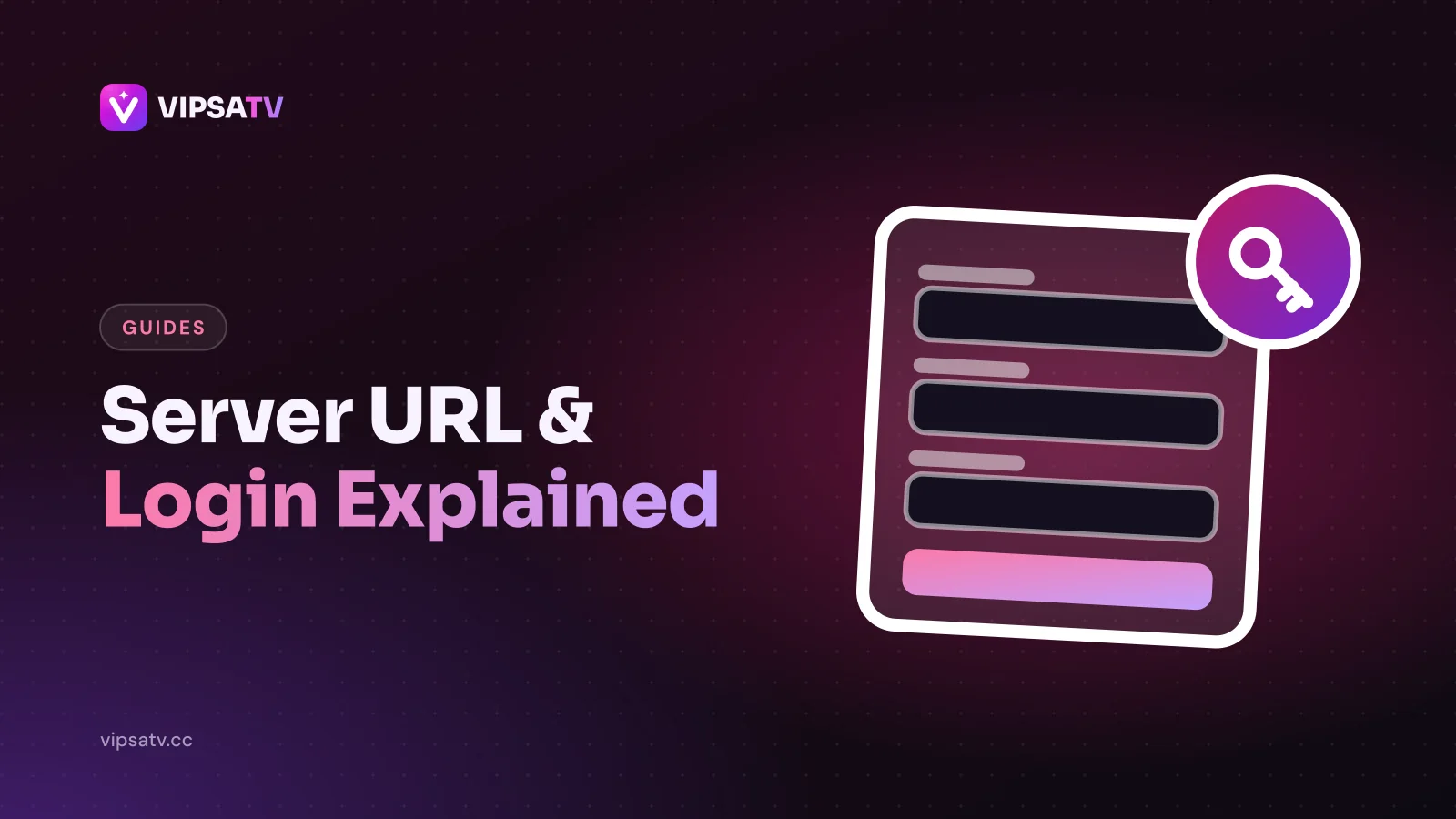
When your VIPSATV account is activated, you receive a short message with three pieces of information. They look technical, but each has one simple job, and understanding them turns most login problems into a two-minute fix.
The server URL: where the app connects
The server URL, sometimes called the portal or host, is a web address that tells the player app where your channels live. It usually starts with http:// and may end with a colon and a number, such as :8080. That number is the port, and it is part of the address. Leave it out and the app cannot connect.
Type the server URL exactly as sent: no extra slash at the end unless it was there, and http rather than https unless your message says otherwise.
Anatomy of a server address
A typical server address has three parts:
- The scheme: http:// at the start, which tells the app how to talk to the server.
- The host: the main part of the address, a domain name or sometimes a string of numbers.
- The port: a colon and a number at the end, such as :8080, which tells the app which door on the server to knock on.
Why some apps ask for it differently
Some players have one box for the whole address; others split it into separate host and port boxes. If you see two boxes, put the main address in the first, without the colon and number, and the number alone in the port box. The information is the same; only the layout differs.
The username and password: who you are
Together, the username and password identify your account on that server. Both are case-sensitive, so a capital letter added by your phone's keyboard is enough to cause an “invalid login” message. The username is also what support asks for when you need help or want to renew.
Copying and pasting safely
Pasting the details avoids typos, but it can carry hidden extras: a space at the end, a line break or a full stop from the message. After pasting, move the cursor to the end of each field and delete anything after the last character. On TV devices, typing is slower but safer; use the remote's keyboard carefully and check each field before confirming.
Xtream Codes, M3U and EPG: three ways to use the same login
Most player apps offer an Xtream Codes or “login with API” option, where you type the three details into separate boxes. It is the best choice because the app also fetches the movie and series library and the TV guide automatically.
Some players ask for an M3U playlist link instead. That is a single web address with your username and password built into it. It loads the live channels, but the TV guide may need a separate EPG link, which is built the same way. If your player wants either link, ask support and they will send yours.
Which method each kind of app uses
Dedicated IPTV players on TV devices, phones and computers almost always offer Xtream Codes, and it is the best choice there. General media players such as VLC use M3U links. Smart TV players on Samsung and LG usually accept either, entered on their website during MAC activation. Set-top boxes such as MAG use a portal address instead of either. If you are not sure which your app expects, the option names on the sign-in screen usually tell you.
Keeping the TV guide in sync
With Xtream Codes, guide data arrives automatically. With M3U, the guide is a separate EPG link that some players need you to add by hand. If channels play but the guide is empty, the TV guide fix explains how to add or refresh it.
MAG boxes and MAC addresses
MAG and similar set-top boxes work differently. Instead of a username and password, the account is linked to the box's MAC address, a code printed on a label underneath it. You send that code to support, they link it to your subscription, and you enter the portal address in the box's settings.
Moving to a new device
With Xtream Codes or M3U, moving to a new TV or stick is simple: install a player and sign in with the same details. With a MAG box, the account is tied to the box's MAC address, so a new box means asking support to link the new MAC address to your subscription. Mention the old and new addresses so the change is made cleanly.
Seven typos behind most failed logins
Check these in order before assuming something is broken:
- Missing http:// at the start of the server URL.
- Missing the port, the colon and number at the end.
- https typed instead of http.
- A space copied at the end of the username or password.
- A capital letter added by auto-capitalisation.
- The letter O typed instead of the number 0, or l instead of 1.
- The server URL pasted into the username box.
Error messages and what they usually mean
The wording varies between apps, but these patterns are common:
- “Invalid username or password”: a typo, a capital letter or a space in the username or password.
- “Cannot connect to server” or a timeout: a mistake in the server address or port, or a network problem at your end.
- “Account expired” or authorisation errors: your plan may have ended; check the end date and renew if needed.
- Channels listed but nothing plays: the login works; the problem is playback, covered in the channels won't play guide.
Storing your details safely
Keep the welcome message, but also save the three details somewhere you can find quickly, such as a password manager or a private note on your phone. When you set up a new device, you can then copy them accurately instead of retyping from memory. Avoid sending them in group chats or posting screenshots when asking for help online; support never needs your password to be shared publicly.
Keep your login to yourself
Your login is for your own household. Each plan allows a set number of screens to play at the same time, and sharing the details so that more screens play than you paid for can get the account suspended. If you need more screens, the multiple connections page shows the options. If a login still fails after checking every typo, the channels won't play guide covers the next steps.
If you think your login has been shared
Signs include channels refusing to play because the screen limit is reached when nobody else at home is watching. Contact support with your username and explain what you are seeing. Keeping the details private, avoiding screenshots in public forums and only typing them into apps from official sources all help prevent it.
A quick reference
Keep this summary next to your welcome message: the server address is where your app connects, the username and password identify your account, Xtream Codes is the preferred way to enter them, M3U and EPG links are alternatives for apps that need them, and MAG boxes use a portal and MAC address instead. With that in mind, the getting started guide and the device guides make much more sense. If you are not yet a VIPSATV subscriber, the free 24-hour trial comes with the same type of login.
Frequently asked questions
What is an IPTV server URL?
It is the web address your player app connects to. It usually starts with http:// and often ends with a port number such as :8080.
Are IPTV usernames and passwords case-sensitive?
Yes. A capital letter added by your keyboard is one of the most common reasons a login fails.
Should I use Xtream Codes or an M3U link?
Use Xtream Codes when the player offers it, because it loads the TV guide and on-demand library automatically. Use M3U only if the player asks for it.
Where do I find my login details?
They are sent by email and on WhatsApp when your account is activated. If you have lost them, contact support with your order details.
What is the port in an IPTV server address?
It is the number after the colon at the end of the address, such as :8080. Some apps want it in the address, others in a separate port box.
Can I use the same login on several devices?
Yes. Install a player on each device and sign in with the same details. Only as many can play at once as your plan allows.
Why does my login work on my phone but not on my TV?
Usually a typo on the TV keyboard, or a missing port. Retype the server address carefully, including http:// and the port number.
Can I change my password?
Ask support if you need new login details, for example if you think they have been shared. Then update every device with the new details.